Segue
Your music in the bar, one click from any device.
A Spotify plugin for the Omarchy Linux desktop. It shows what's playing in the top bar, opens a small player with cover art and controls, and moves playback to your phone, speakers or TV with Spotify Connect. Setup is guided, and the login is kept in the system keyring.
v1.2.1, free and open source, built and maintained by Steve Berg.
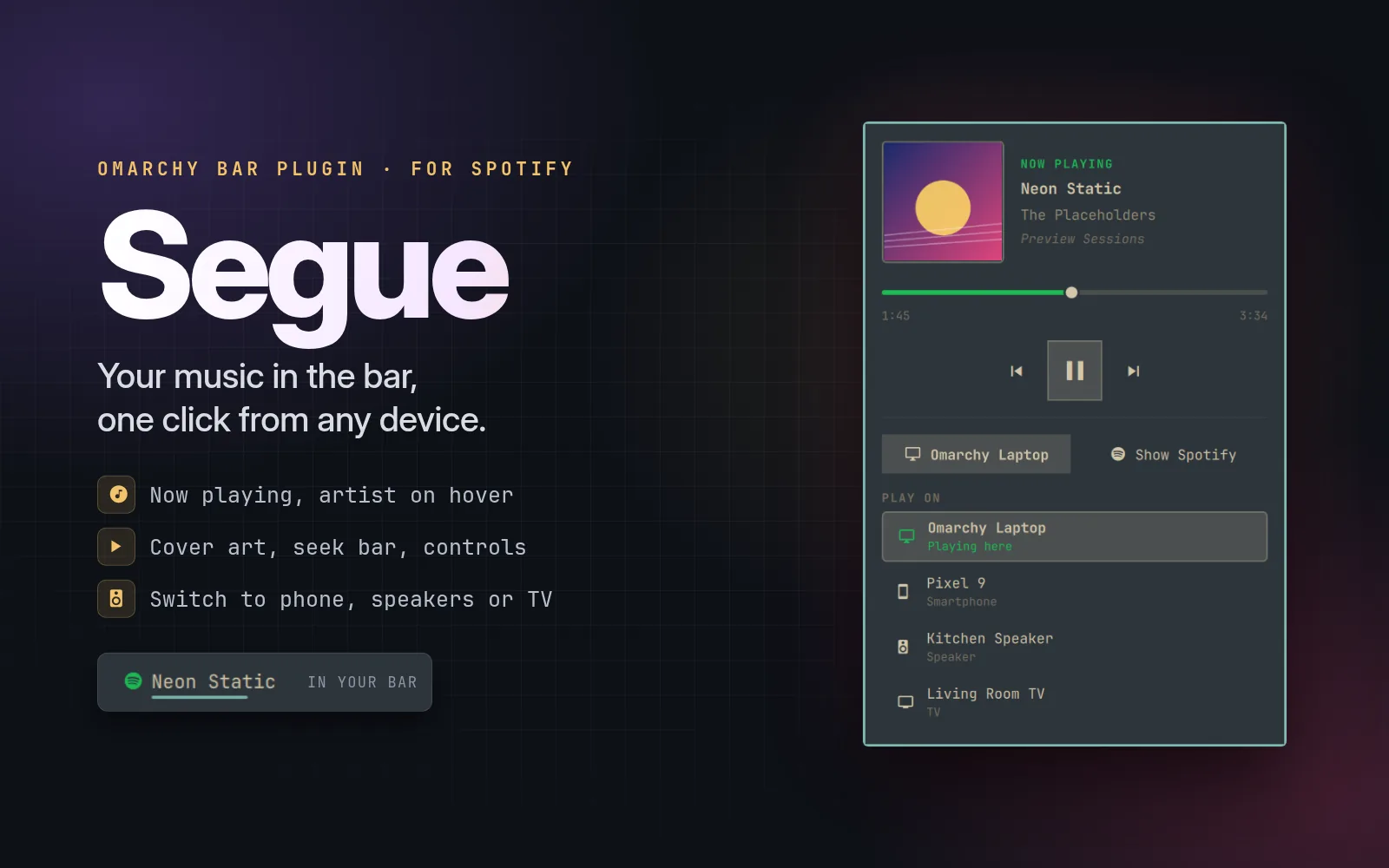
Everything Segue puts in your bar
Only follows Spotify
Omarchy's built-in media widget follows whichever player is loudest, so a browser tab can take it over. Segue only ever shows Spotify.
Now playing in the bar
The song title sits in the bar. Hover to see the artist, new tracks slide in, and the icon turns green while music plays.
A small player on click
Cover art, title, artist and album, a progress bar you can drag, and previous, play-pause and next.
Play on any device
With Spotify Connect, see which device is playing and move playback to your phone, speakers or TV in one click.
Up and running in minutes
You need
- Omarchy 4 and the Spotify desktop app.
- For device switching only: Spotify Premium and a free Spotify developer app (the setup walks you through it).
Find Segue on the Omarchy plugin marketplace, or install it from a terminal:
$ omarchy plugin add https://github.com/SteveB98/omarchy-segue --enableThen
- 1Run omarchy restart shell so the bar loads the new plugin.
- 2Open Spotify and play something. Segue appears on the right side of the bar; click it to open the player.
- 3To switch devices, click Connect devices in the panel, then Set up Spotify Connect, and follow the two-minute guide.
The full guide, settings and troubleshooting are in the README on GitHub.
Your account stays yours
- The Spotify login is stored in the system keyring, never in a plain file, and tokens never appear on a command line.
- It only asks for two permissions: reading playback state and controlling playback. It can't see your playlists or account.
- The only network requests go to Spotify, and only while the panel is open or when you switch devices.
- It never asks for admin rights, never installs packages, and never edits your configuration files.
Frequently asked
- Do I need Spotify Premium?
- Not for the player. Now playing, the panel and the controls work with any Spotify account. Moving playback between devices uses Spotify Connect through Spotify's official API, which Spotify only allows on Premium accounts.
- Why does device switching need a developer app?
- Spotify only lets apps control playback through its official API, and each person registers a free developer app on their own account to use it. Nothing is published and nobody else can see it.
- Does it work with other music players?
- No. Segue is built for Spotify on purpose, so a video in a browser tab never takes over the bar. Omarchy's built-in media widget covers other players.
Need something custom built for your business? Start a project.